Showing posts with label Hard disk drive. Show all posts

Monday, March 22, 2010

Recovering files from a corrupt memory card

Yesterday was a busy and frustrating day. Well, most of it.

The memory card of my mobile phone suddenly decided to go bust. I searched the entire web for programs which would allow me to recover data from my memory card. Unfortunately most of them were Windows ones and none of them worked with wine (the demo versions that is, because the full versions of those softwares cost a bomb!).

So there I was stuck with my corrupt memory card. I had loads of important data on it so losing all those meant losing quite a lot of data. Fortunately help was right at hand! I came across some very useful posts (www.goinggnu.wordpress.com/2008/02/14/recover-deleted-files-from-memory-card and https://help.ubuntu.com/community/DataRecovery) which made things easy.

What I did was as follows:

1. I made an image of the memory card on my PC. How? By typing the following in the Terminal:


dd if=/dev/sdb1 of=memory_card.img bs=512


"memory_card.img" was saved under my /home folder. sda is the device name of the memory card, it might not be the same for you. To check what the assigned name of the memory card is, I opened System Monitor (available under System > Administration > System Monitor) and then clicked on the tab called File Systems. Also, please note, this 'creating image' process can take some time. It took the program around 20 mins to scan a 1GB RS-MMC memory card.

2. Next, I installed Testdisk


sudo apt-get install testdisk


3. Next I used Photorec, a free data recovery tool to scan the image of the memory card


sudo photorec memory_card.img


memory_card is of course the name you have used to save the image on your hard drive.

I simply followed the instructions of Photorec and the lost files were back, saved under the /home folder. Phew! I cannot explain how relieved i was! Open source saved the day!

Share/Bookmark


Monday, November 16, 2009

Install Kubuntu

Many prefer Kubuntu to Ubuntu because of the stunning interface.

This is perhaps the most user-friendly tutorial on how to install Kubuntu afresh on your PC. To get Kubuntu, click here (as with all Cannonical releases, its totally free!) and burn the downloaded .iso file to a CD (you could also burn it to a DVD).

One more thing, the installation instructions here are for Kubuntu 9.10 (Karmic Koala release), currently the latest version.

Step 1: BIOS Changes - Make sure your first boot device is set to your CD/DVD ROM. Save your settings and exit BIOS.

Step 2: When you boot, this is the first screen you will get:


Step 3: Select your language and then select the "Install Kubuntu" option and press enter.

Image Hosted by ImageShack.us

Step 4: The following images are in sequence. You will have to enter your details as per your preferences.

Image Hosted by ImageShack.us

Image Hosted by ImageShack.us

Select your region:

Image Hosted by ImageShack.us

Select your keyboard layout (best keep it to the default one as shown here if you're not sure).

Image Hosted by ImageShack.us

If you want to install Kubuntu on your hard drive as the only OS, then click on the first option "Erase and use the entire disk" as shown here. (If you want to set partitions, click on the specify partitions and set your partition size and specification) Its better to select the first option as shown here if you're not sure.

Image Hosted by ImageShack.us

Enter your name and username, password etc. If you dont want Kubuntu to ask you for passwords everytime you boot, select the "Log in automatically"

Image Hosted by ImageShack.us

Click on Install and get your cup of coffee coz its gonna take quite some time! :)

Image Hosted by ImageShack.us

The installation bar which you will have to tolerate for around 10-15 mins. Did you get that coffee?

Image Hosted by ImageShack.us

After the installation is over/the bar reaches 100%, you will get this image on your screen. As directed simply remove the CD from the tray and press Enter.

Image Hosted by ImageShack.us

Kubuntu will now reboot and greet you with its amazing interface!

Image Hosted by ImageShack.us

Thats it!

Share/Bookmark

Saturday, November 14, 2009

Ubuntu Tweak

Want to use Chromium, Opera and the latest beta softwares on Ubuntu? That can be a problem coz the Ubuntu repositories generally dont have the latest softwares, as new releases are tested by Ubuntu developers before adding them to repos.

Enter Ubuntu Tweak, a nifty and smart software which helps you install nearly all popular softwares not in the Ubuntu Repository.

To install Ubuntu tweak, you need to select your Ubuntu version and type of processor. Download the package thats suitable for you from here.

Save it on your hard drive and double click on the downloaded file. Click on the install option and wait for it to get completed.

Ubuntu Tweak can be found in the System Tools under the GNOME Application menu.
When the program loads, click on the Applications tab (of Ubuntu Tweak) and the on the Third Party Sources. Then click on the "unlock" button to unlock the programs (you might have to enter your password here). The pic elaborates it:

Image Hosted by ImageShack.us

Finally select the software you want from the list and then tick the selection option. You need to click on "Refresh" to activate the software.

The following pic elaborates it (example has been given with Banshee Stable Version):

Image Hosted by ImageShack.us

Thats it. Enjoy!

Share/Bookmark


Saturday, July 25, 2009

Ubuntu is seriously cool!

Just check out my desktop pics of some Ubuntu themes below. Cant imagine Windows looking that cool!

Photobucket


Photobucket


Also, the bundled and available apps are awesome. Pidgin, a messenger client logs you in to gtalk, IM, and facebook chat (yea you heard me right, facebook chat!) all at the same time, which is stunning! This is seriously better than anything I have ever used. There's even a faster version of firefox on linux and its called "Swiftfox". And for a change, it actually does what its name suggests. I noticed all these only because I installed it on my hard disk. Most people who use Live CD, most probably haven't used these features. However, all is not hunky dory. The thing is Ubuntu requires some basic knowledge of Linux and how it works. But the thing is, the Ubuntu forums are so brilliantly remarkable, they have already covered solutions of all problematic areas you are likely to face as a new user.

I seriously wonder when I'm gonna stop blogging about Ubuntu. It stuns me every single time I log in!


Share/Bookmark

Thursday, July 16, 2009

Can I really trust Ubuntu?


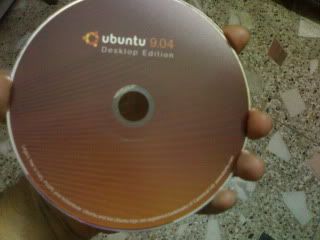
Now that I have the Ubuntu disk and have been using the "boot via CD" option, it is getting extremely tempting to go for an all out installation of Ubuntu on my hard disk, since without a proper root directory it is very difficult to install applications.

I already have Windows installed on my system, so the options I'm left with are a) format/create a partition and install Ubuntu or b) install Ubuntu on an existing partition. Obviously the second option seems the more viable one as of now since I'm in no mood to sacrifice my hard disk data. However I'm starting to have second thoughts about it, what if my hard disk gets screwed up? What if I lose data? What if my PC slows down? Is Ubuntu worth all these risks?

Well just too many worries. I'll wait till the time I'm ready to format my hard disk. Till then, I'll use the CD booting option.


Share/Bookmark